Replacing Defective RAM on an HP Laptop

Background
Part of my job as a Computer Technician is performing hardware repairs for laptops under warranty. Today, a laptop came in that had a flickering screen. It would only boot up with Windows about half the time. When Windows loaded, I would try to login, but it would freeze after a minute. The other half of the time, nothing would load on the screen, yet the caps lock LED light would blink.
Initially, I thought it was an issue with the screen because of the flickering, so I plugged in an external monitor into the HDMI port. This did not end up being the solution, and even if it was, the unresponsive trackpad and mouse from the frozen screen would still need to be addressed.
After power resetting the laptop a couple times, I noticed that the caps lock LED light would blink during the times when nothing on the screen loaded. It blinked in a specific pattern: 3 long and 2 short. Looking up the light code indicated that it was a memory issue.
Removing one of the RAM sticks allowed the laptop to boot as normal with the trackpad and mouse being responsive as well. We found the defective RAM module! However, this meant that the laptop only loaded with half the RAM (8 gb instead of 16 gb) because we took out one of them. That change was reflected in Task Manager showing only 8gb of available memory in the performance tab.
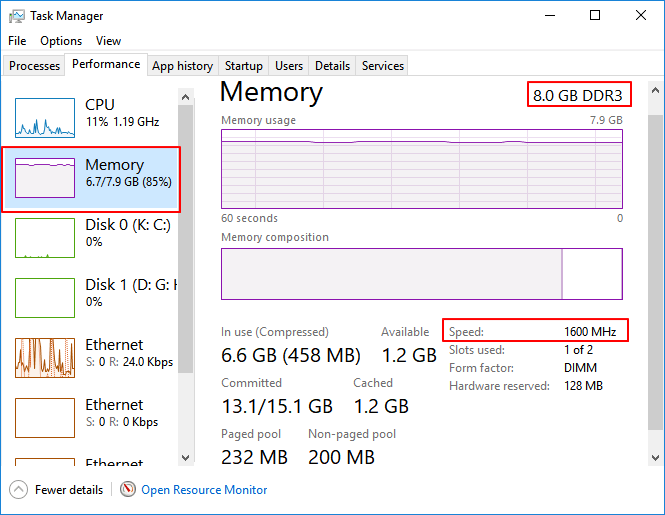
Luckily, we had a replacement RAM of the same type that we slotted in for the old one. The new RAM allowed the laptop to return to its original 16 gb of available memory. The repair was completed!
Reported Issue
“Screen freezes after booting. Keyboard and mouse stopped working.”
Diagnosis
Memory failure identified by caps lock flashing 3 long and 2 short blinks.
Solution
We replaced the defective RAM with a new one.
The video above was particularly helpful in identifying the solution. As the author puts in, “RAM is kind of like headlights on a car. They tend to go bad one at a time.” She then suggested using the process of elimination to find out which RAM stick is faulty by turning the computer on with only one of the RAM sticks on at a time. The one on the right ended up being the one needing replacement. Thanks Egghead Fixes!
This article from iFixit was another helpful resource for walking me through how to replace the RAM on an HP laptop. Overall, this was a fairly simple fix but satisfying to perform.